Issue Management Overview
The Issue Management module provides a structured way to track, prioritize, and resolve data quality problems across your organization.
What is an Issue?
An Issue (also called a ticket) represents a data quality problem that needs attention. This encompasses a wide range of situations, including incorrect or missing data, failed quality checks, schema discrepancies, errors in data pipelines, problems reported directly by users, AI model drift incidents, and training data degradation affecting AI system performance.
Why Track Issues?
Formal issue tracking provides Visibility, ensuring everyone knows what problems exist. It establishes Accountability by assigning clear ownership for resolution, maintains a History of past issues and solutions for future reference, and generates Metrics to track resolution times and identify patterns.
Issue Workflow
Status Lifecycle
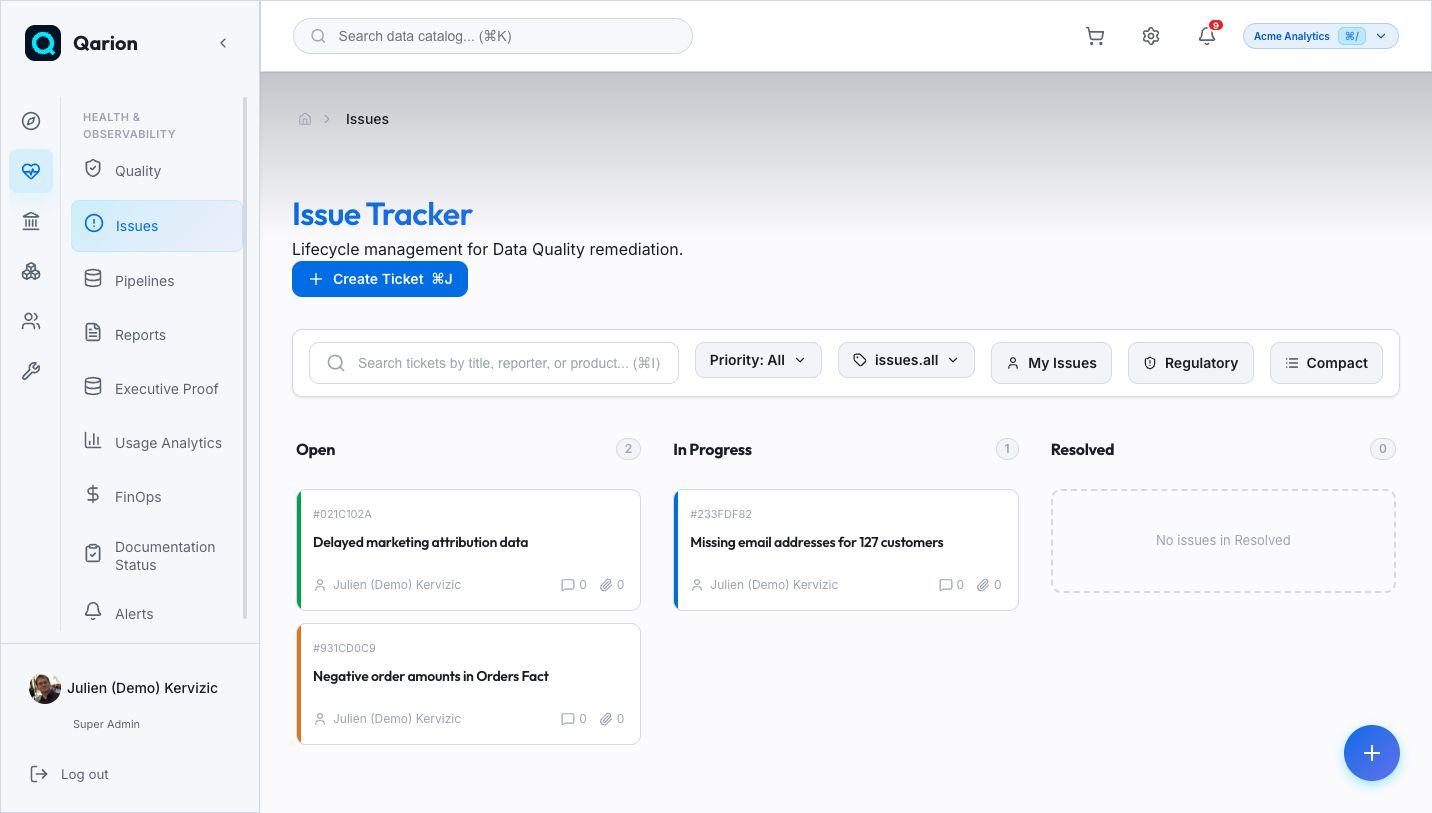
Issues follow a simple lifecycle: Open -> In Progress -> Resolved. An Open issue has been reported but work hasn't started. In Progress indicates active work is underway, and Resolved means the problem has been fixed.
Priority Levels
Priorities help classify urgency. Critical issues require immediate attention. High priority items are important and should be addressed soon. Medium represents standard priority work, while Low priority issues can be addressed when time allows.
Creating Issues
Manual Creation
To create an issue manually, navigate to Issues in the sidebar and click Create Issue. Fill in the required Title, add a Description, set the Priority, and assign an Assignee before clicking Create.
From Quality Alerts
When a quality check fails, you can create a ticket directly from the Alerts Center. Open the alert and click Create Ticket. The issue will be pre-populated with details from the alert, including the affected product and execution information. You can add context before saving.
From Products
You can also create issues directly while viewing a data product. Go to the Issues tab on the product page and click Create Issue. The product will be automatically linked to the new ticket.
From Record-Level Error Tables
Row-level record issues can also be synchronized from an external system such as an Airflow DAG, validation job, or warehouse error table. These issues appear in the product's record issues view with their source, external key, last-seen timestamp, and original payload metadata. When the next snapshot no longer contains an externally mastered issue, Qarion can automatically mark it as resolved.
Issue Components
Core Fields
Every issue contains core fields to track its state. The Title provides a brief summary, while the Description offers a detailed explanation with markdown support. Priority indicates urgency, Status tracks current state, Reporter identifies the creator, and Assignee marks who is responsible for resolution.
Product Linkage
Issues can be linked to affected data products. A single issue can be linked to multiple products, ensuring that the issue appears in each product's Issues tab and that stakeholders for all affected products are notified.
Attachments
You can attach evidence and documentation to issues, such as screenshots, log files, data samples, or other relevant documentation.
Views
Which Issue View To Use
Qarion ships several issue surfaces, each with a different job:
| Surface | Route | Use it for |
|---|---|---|
| Issues board | /issues | Triage collaborative tickets, assign owners, move work through Open, In Progress, and Resolved, and open ticket details. |
| Data Issue Logs | /data-issue-logs | Review the open stewardship backlog across tickets and unresolved record issues in one place. |
| Ticket detail | /issues/{ticket-id} | Investigate one ticket, discuss evidence, manage attachments, review history, run AI triage or impact assessment, and capture a resolution debrief. |
| Product record issues | Product detail, Record issues section | Inspect row-level issues for one product, including primary keys, source metadata, status overrides, and linked tickets. |
Use the Issues board when the work is already a collaborative ticket. Use Data Issue Logs when you need a unified operational list that includes both tickets and record-level issues that may not yet have been promoted to tickets.
Kanban Board
The Kanban Board is a visual view organized by status columns (Open, In Progress, Resolved). It allows for drag-and-drop status changes and provides quick visibility into the overall workload.
List View
The List View displays all issues in a tabular format, offering sort and filter capabilities, bulk operations, and export options.
Product Issues Tab
The Product Issues Tab allows you to see issues affecting a specific product, separated into active and resolved sections, and lets you create new issues in context.
Data Issue Logs
The Data Issue Logs page combines open tickets and unresolved record issues
into a single stewardship backlog. It is available at /data-issue-logs and can
show either the active space or the selected organization, depending on your
current scope.
The page includes summary counters for open items, tickets, record issues, and high-attention work. Use search to find issues by title, product, or primary-key values. Filter by item kind, status, and severity to focus on tickets, record issues, in-progress items, accepted/resolved items, or high-attention failures.
Each row shows the work item, product, responsible party, status, severity, and age. Ticket rows open the ticket detail page. Record issue rows open the product's record issues section, or the linked ticket when one exists. From the row actions, stewards can promote a record issue to a ticket, mark it resolved, accept it as known/expected, or clear an existing status override.
Key Features
Comments and Discussion
The platform supports collaboration on issue resolution through comments. You can add comments with markdown formatting, @mention team members, and track the full discussion history.
History and Audit Trail
Every change to an issue is logged in the audit trail. This includes status transitions, assignment changes, field modifications, and any added comments or attachments.
External Source Tracking
Externally mastered record issues include source metadata so teams can distinguish manual triage from automated validation output. Qarion tracks the source kind, source key, external issue key, connector, sync job, last-seen time, and any status override made by a user.
Resolution Debrief
When resolving complex issues, a resolution debrief allows you to document the root cause, record lessons learned, and ensure that knowledge is captured for future prevention.
Integration with Products
Issues and products are deeply interconnected. Linking issues to affected products allows you to view product stakeholders and seamless navigate between the issue and product views.
Getting Started
- Kanban Board — Learn to use the visual workflow board
- Ticket Details — Understanding issue details and management
- Data Issue Logs — Use
/data-issue-logsto triage tickets and unresolved record issues together - Mitigation & Remediation — Track AI risk mitigations through issues
Technical Reference
For developers and architects, see the Technical Reference for data models and API details.